Add an M4B Audiobook to Smart Audiobook Player on Android

Author
Nov 19, 2026 7 minutes
You have an M4B audiobook on your Android phone and want to listen to it in Smart Audiobook Player. The player handles M4B files well, with the cover and every chapter in place. It just doesn't look in Downloads, or wherever else the file landed. It reads one folder you pick, and it expects every book in a folder of its own.
The whole thing takes about two minutes, and you only set up the player once. After that, each new book is one move in the Files app. Here it is in 39 seconds. The written steps below follow the same order.
What you need
- An Android phone
- Smart Audiobook Player from Google Play
- Your .m4b file, in Downloads or any other folder on the phone
The short version: Move to → Audiobooks → New folder → Add root folder.
Step 1: Find the file in Files
Open the Files app and go to the folder that holds your audiobook. A file you downloaded lands in Downloads, which is what the pictures show. If yours is somewhere else, for example in Documents, a Quick Share or Bluetooth folder, or on an SD card, open that folder instead. The steps are the same from there. On phones without Files by Google, your phone's own file manager works the same way.
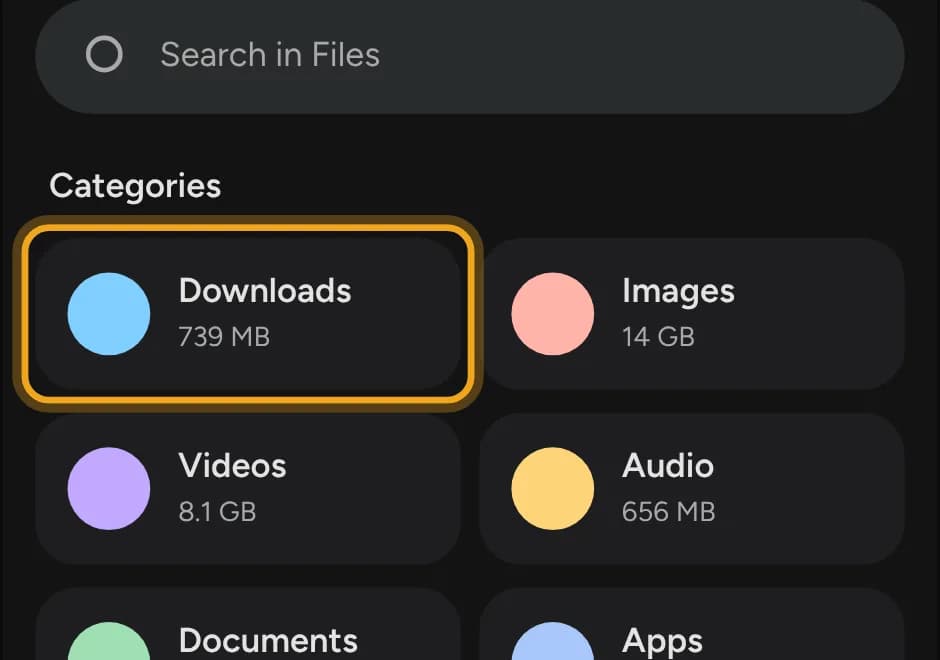
Find your audiobook and tap the three dots next to it.
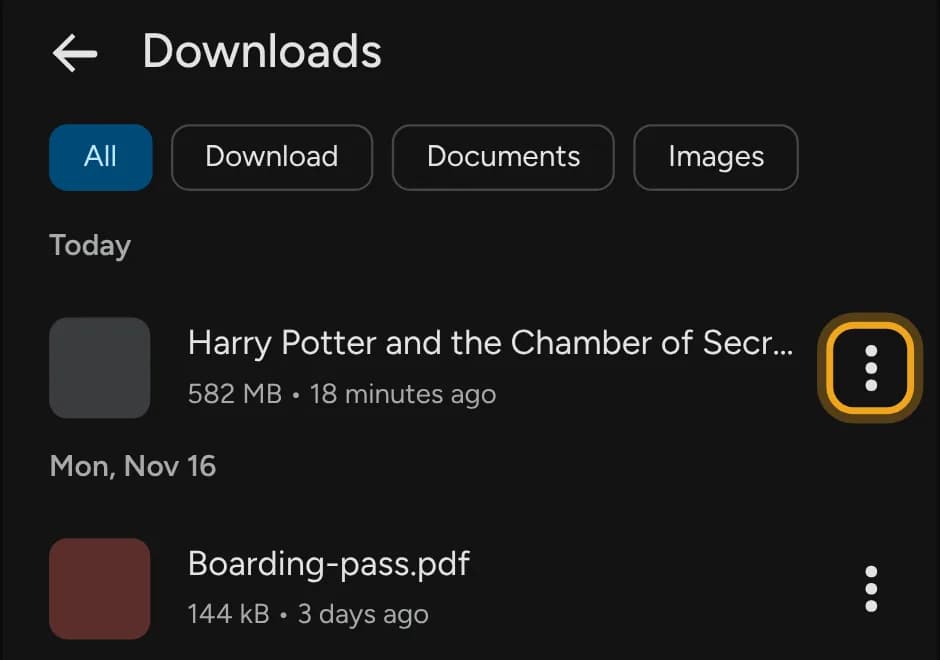
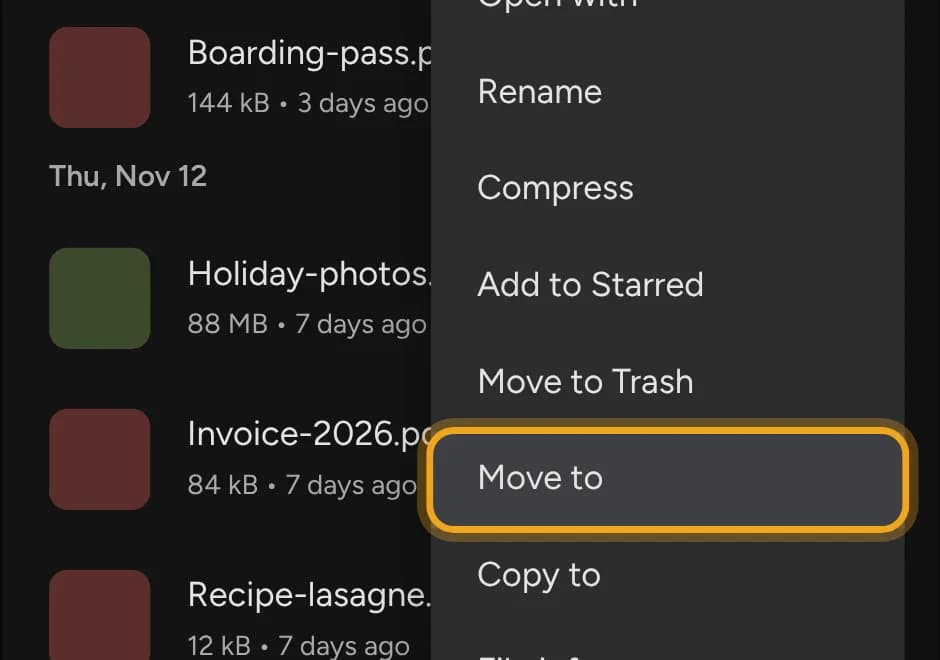
Tap Move to.
Step 2: Move it into Audiobooks, in a folder of its own
Files now asks where the file should go. Open Internal storage, then tap the Audiobooks folder. Smart Audiobook Player usually creates it for you. If yours has none, make it with New folder.
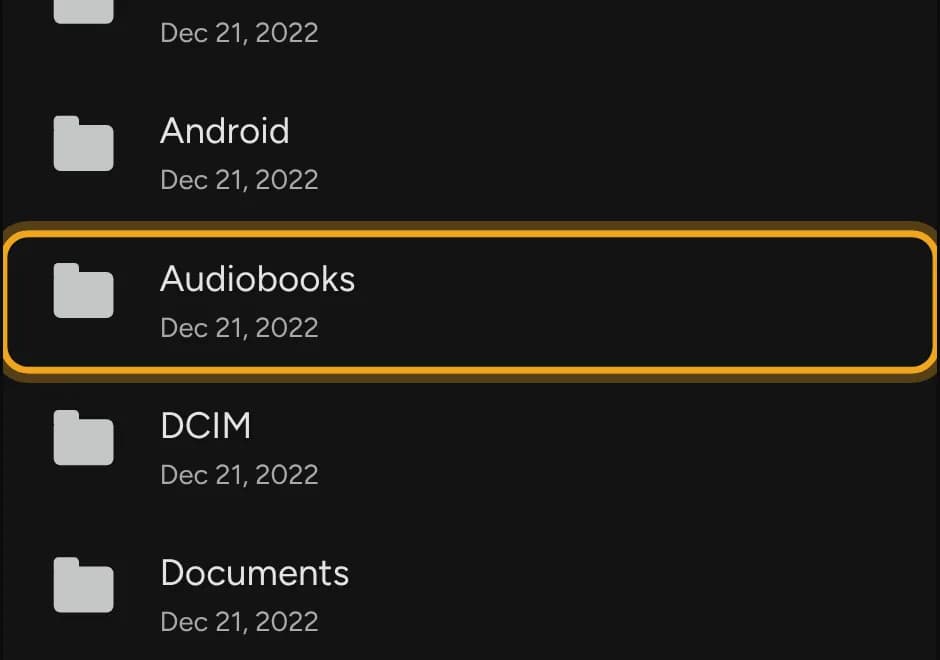
Don't tap "Move here" yet
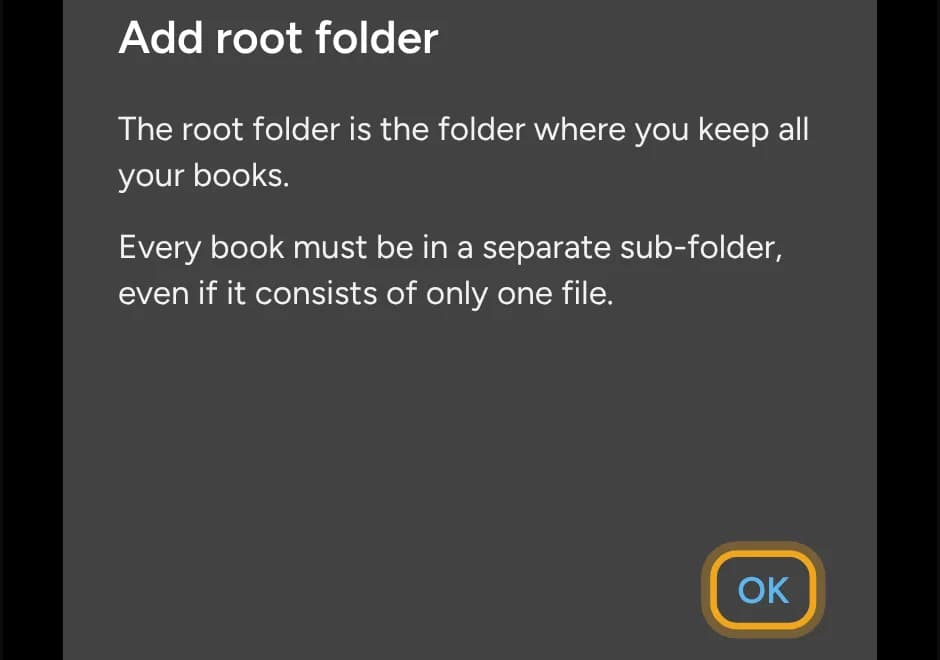
Smart Audiobook Player treats every folder inside Audiobooks as one book. Its setup screen says: "Every book must be in a separate sub-folder, even if it consists of only one file." An M4B dropped straight into Audiobooks doesn't count as a book.
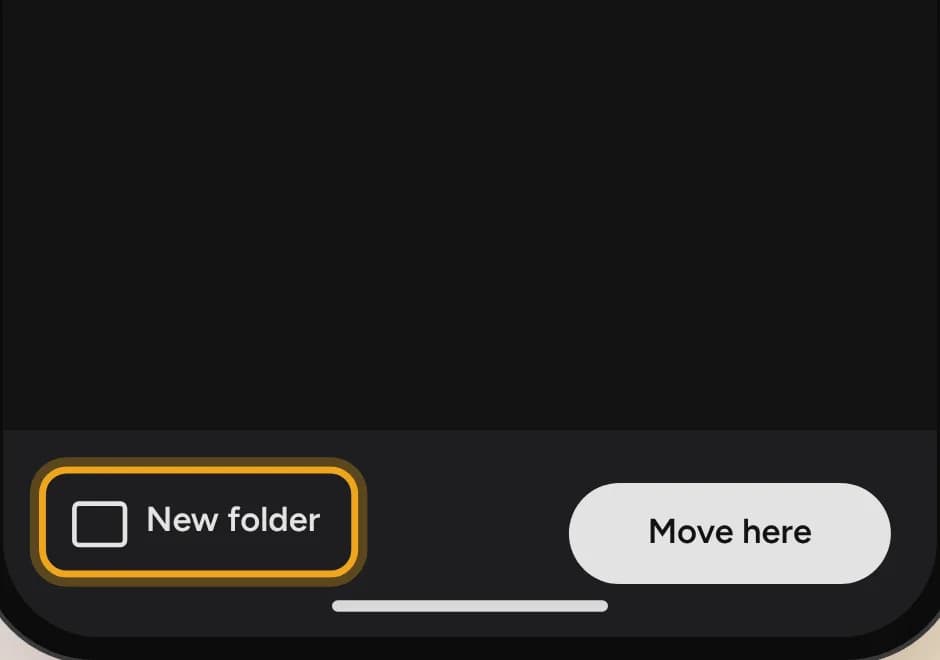
So tap New folder instead.
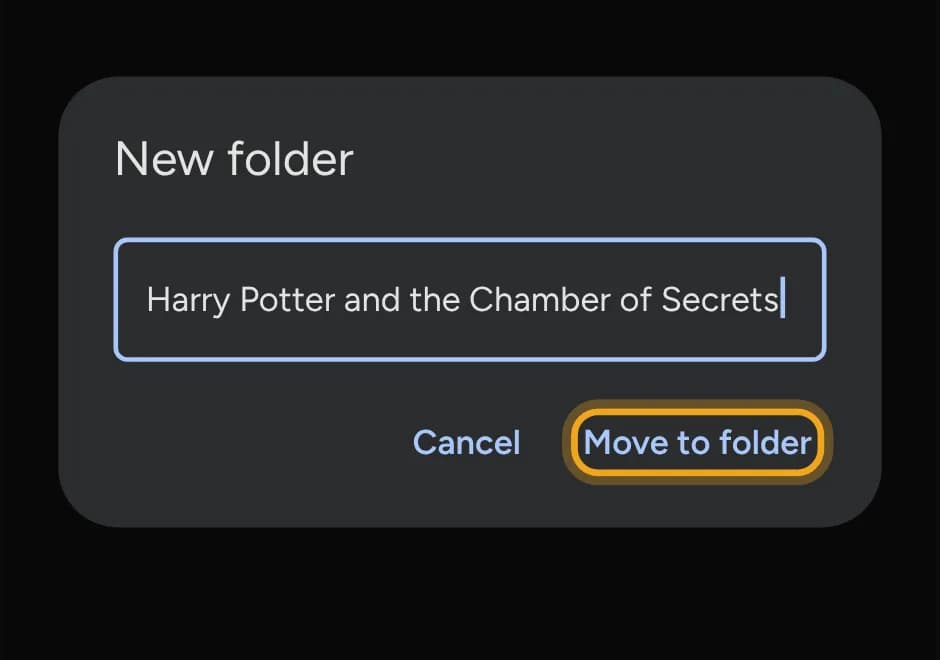
Name the folder after the book and tap Move to folder.
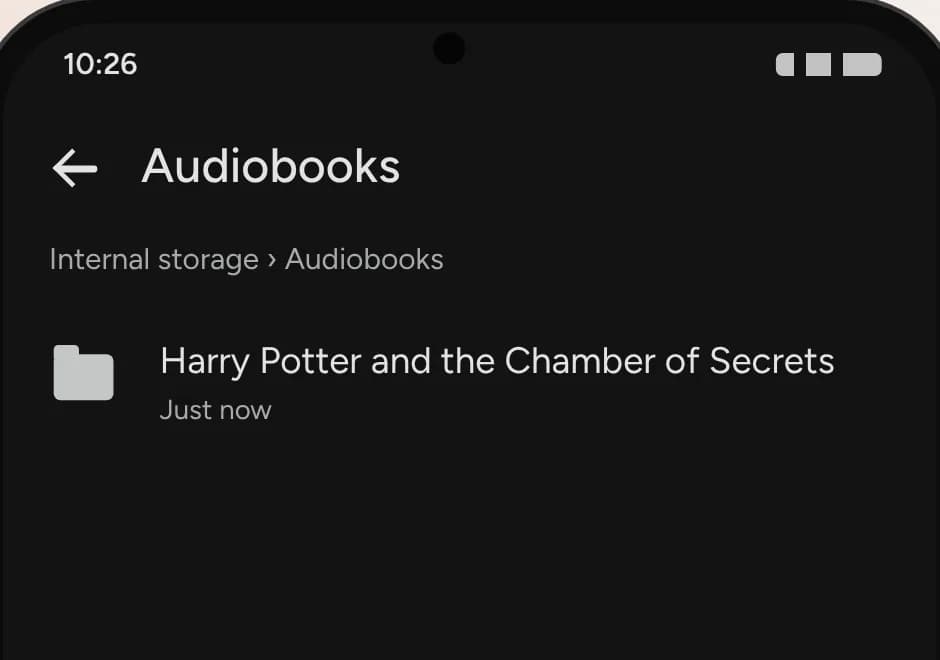
The file is now in Audiobooks › your book's folder. Files confirms it with "1 file moved to…" at the bottom of the screen.
If you collect a lot of books, the player also understands one level more: Audiobooks/Author/Book title.
Step 3: Point Smart Audiobook Player at Audiobooks
Open Smart Audiobook Player. The first time, it asks for a root folder, the one folder where you keep all your books. Tap OK.
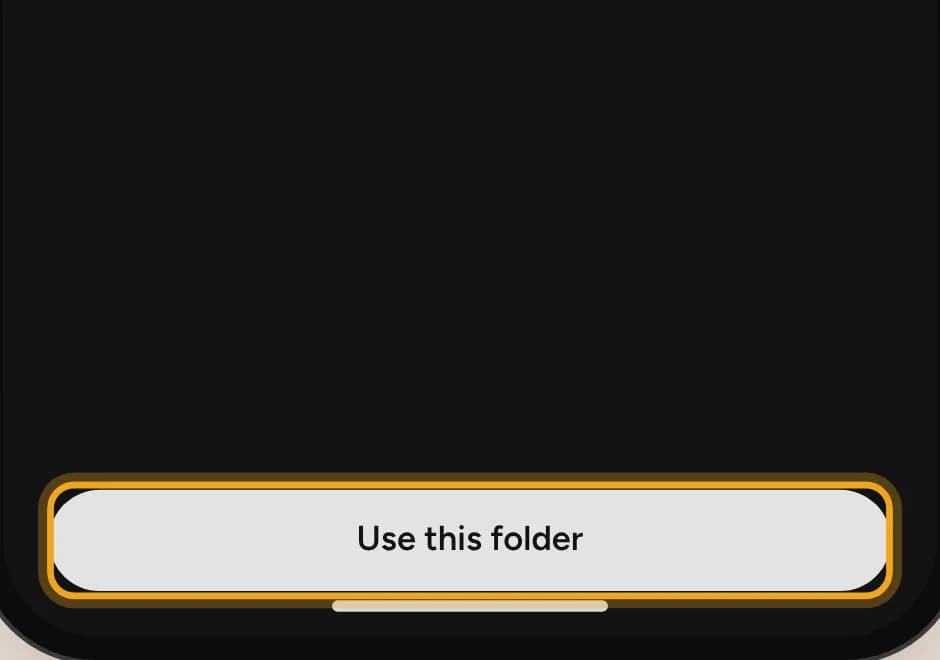
Android's folder picker opens. Go to the Audiobooks folder. You should see your book's folder inside it. Then tap Use this folder at the bottom.
Step 4: Allow access
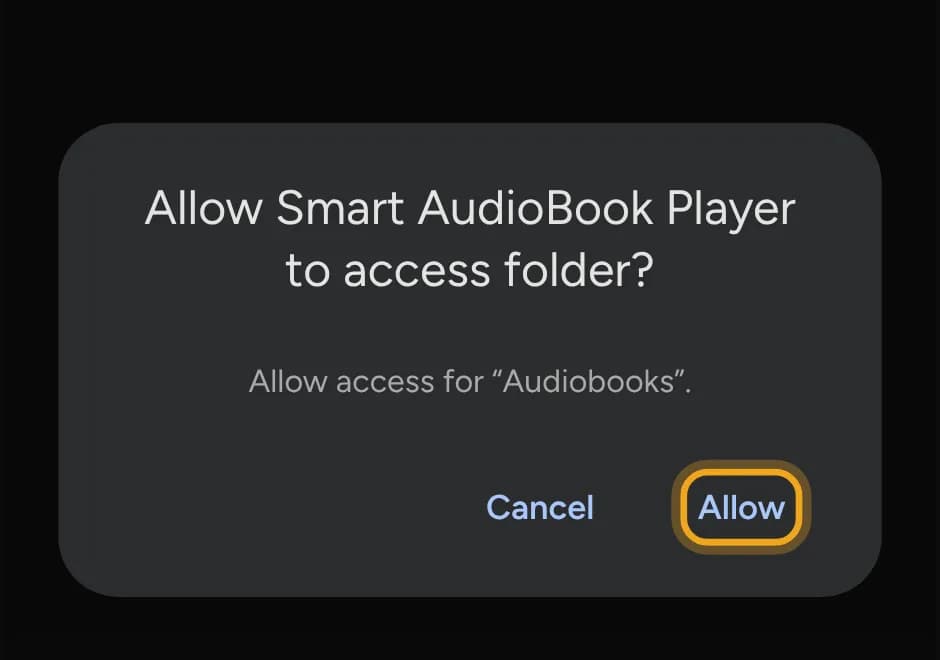
Android asks whether Smart Audiobook Player may read the folder. Tap Allow. That gives the player the Audiobooks folder only, not the rest of your phone.
There's your book
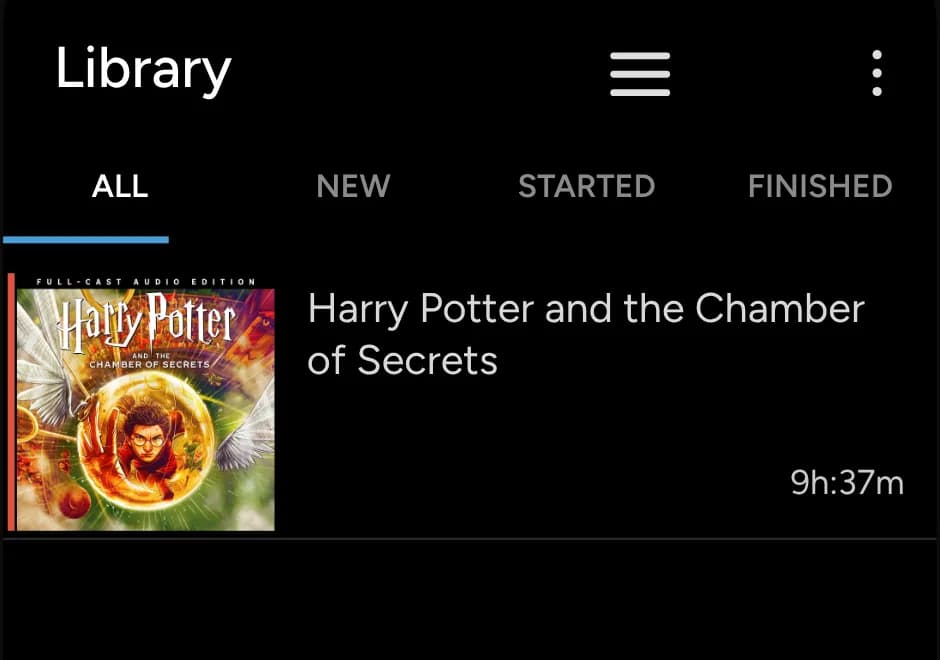
The library lists the book with its cover and length. Tap it to open the player. The first time, the app shows a short note about its Basic and Full versions. Tap OK.
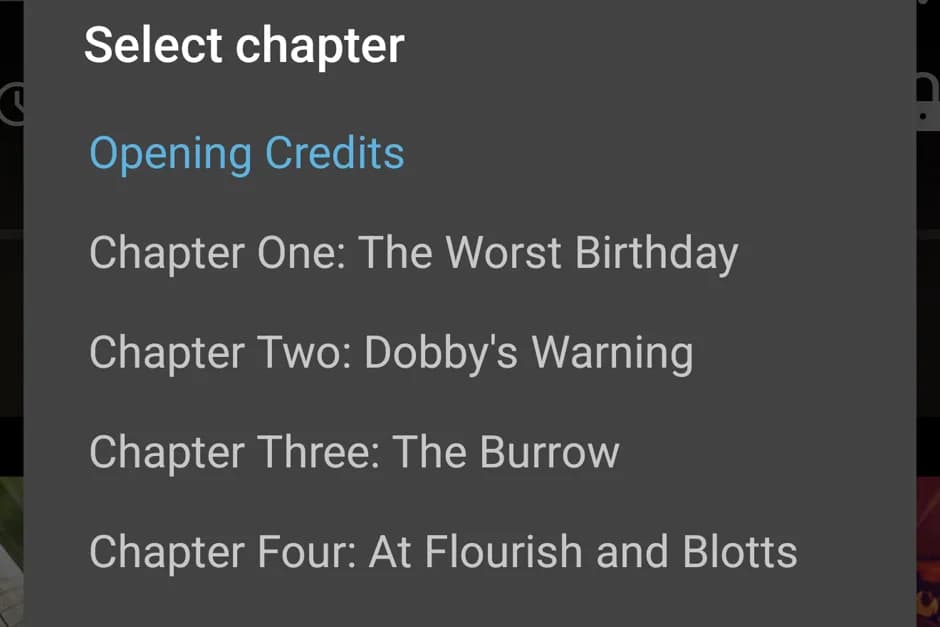
The chapter title sits under the cover. Tap it to jump to any chapter by name.
The next book is quicker. Move it into a new folder inside Audiobooks, then open the player. If it doesn't show up right away, tap the round arrow at the top of the library to scan again.
If something looks off
The library stays empty. The file is probably loose in the root folder or still in the folder it came from. Check in Files that the path reads Audiobooks › book folder › file.
One book shows up as several, or two books merge into one. Each folder is one book. Give every book its own folder and keep only that book's files inside.
The file is on my computer, not my phone. Connect the phone with a USB cable, choose File transfer in the USB notification, and copy the M4B into a new folder inside the phone's Audiobooks folder. Then continue with step 3.
The book has no chapters. Chapters and cover travel inside the M4B file. If the file has none, the player has nothing to show.
Don't have an M4B yet?
If your audiobook is a folder of MP3s, Smart Audiobook Player can play that too: put the MP3s in one book folder. But you get one entry per file instead of named chapters, and file names like "track 07" decide the order. Why audiobooks use M4B files instead of MP3 folders explains the difference.
That is what I built Audiobook Converter for. Drag in your MP3 files and you get one M4B with a chapter for each file, ready for the steps above. No installation or account required.
On an iPhone? See how to add an M4B audiobook to Apple Books. Prefer a different app? See the best audiobook player apps for M4B and MP3 files.